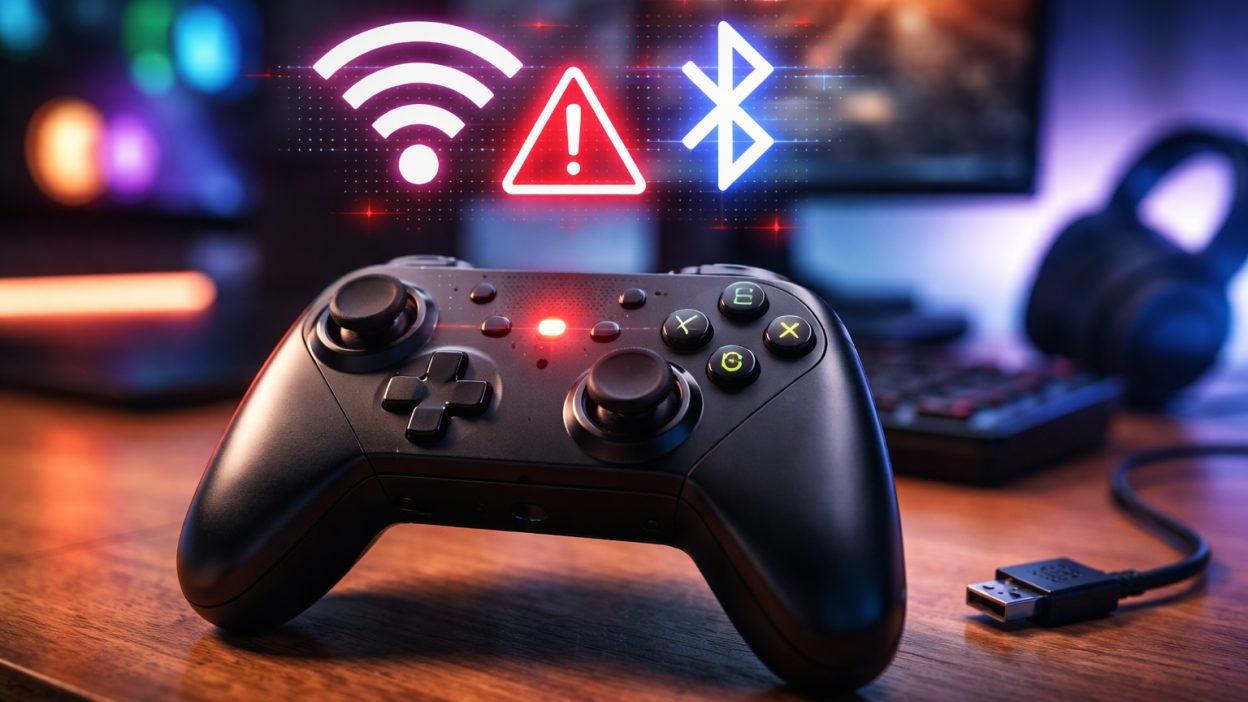
Few things ruin a gaming session faster than a controller that refuses to cooperate. You power on your device, launch your favorite game, and within minutes you’re dealing with dropped inputs, lag spikes, or a controller that simply disconnects without warning. For many players, connectivity issues with the HSSGamepad have become an all-too-familiar frustration.
The good news is that most connectivity problems are not permanent hardware failures. In fact, they often stem from environmental interference, outdated software, incorrect settings, or simple pairing errors. Once you understand how wireless and wired connections actually work, troubleshooting becomes far less intimidating.
This guide explores why connectivity issues happen with HSSGamepad, how to diagnose them properly, and what you can do to restore a stable, responsive gaming experience. Whether you play on PC, Android, or smart TV, the principles remain the same: identify the weak link, eliminate interference, and optimize your setup.
Understanding How HSSGamepad Connects
Before diving into solutions, it helps to understand what’s happening behind the scenes. HSSGamepad typically connects through Bluetooth for wireless play or via USB for wired connections. Each method has its own strengths and vulnerabilities.
Bluetooth relies on radio frequencies, usually within the 2.4 GHz spectrum. This is the same frequency band used by many Wi-Fi routers, wireless keyboards, headphones, and even household devices like microwaves. When too many devices compete for the same space, interference increases.
USB connections, on the other hand, rely on physical cables and port stability. While generally more reliable, they can still fail due to damaged cables, loose ports, outdated drivers, or power management settings.
Connectivity problems arise when any link in this chain breaks down. That link could be the controller, the receiving device, the software driver, or the surrounding wireless environment.
Common Connectivity Issues with HSSGamepad
Pairing Failures
One of the most common complaints is the inability to pair the controller at all. The device appears in the Bluetooth menu, but connecting fails repeatedly. Sometimes it connects once and never again.
This usually happens because the controller is still paired with another device. Many controllers automatically reconnect to the last paired system, which can block new connections. In other cases, the controller may not be in proper pairing mode, or the receiving device may have stored a corrupted pairing profile.
Random Disconnections
Random disconnections are especially frustrating. The controller works perfectly for ten or twenty minutes, then drops out mid-game. Sometimes it reconnects automatically. Other times, it requires a full restart.
This behavior often points to interference or power instability. Low battery levels can weaken signal strength. Environmental obstacles such as metal TV stands or thick walls can disrupt Bluetooth signals. Even sitting too far from the console or PC can increase drop frequency.
Input Lag and Delayed Response
Lag is more subtle than a disconnect but equally damaging. The controller appears connected, yet movements feel sluggish. In competitive games, even milliseconds matter.
Lag can be caused by Bluetooth interference, outdated firmware, background software conflicts, or overloaded system resources. Wireless gaming in crowded apartment buildings can be especially vulnerable due to overlapping signals from neighboring networks.
Controller Not Recognized on PC
On Windows PCs, users sometimes encounter a scenario where the controller connects but isn’t recognized by the game. The system may list it as a generic input device, or it may appear twice.
This issue often stems from driver conflicts or input mode mismatches. Some controllers support multiple modes, such as X-Input and D-Input. If the game expects one mode but the controller is using another, compatibility problems arise.
Why Wireless Interference Is Increasing
Wireless congestion is growing every year. The number of connected devices in modern homes has multiplied dramatically over the last decade. Smartphones, smart speakers, wireless earbuds, fitness trackers, routers, and gaming accessories all compete for bandwidth.
Bluetooth technology uses adaptive frequency hopping to reduce interference. This means it rapidly switches between channels to avoid noisy frequencies. While this improves stability, it doesn’t eliminate interference entirely.
In densely populated environments, especially apartment buildings, multiple Wi-Fi networks overlap. If your router operates on the 2.4 GHz band, it may be competing directly with your controller. Switching to a 5 GHz Wi-Fi band can sometimes reduce that congestion and improve controller stability.
Physical barriers also matter more than people realize. Large metal objects, TV mounts, PC cases, and even reinforced walls can weaken Bluetooth signals. Sometimes simply repositioning a Bluetooth dongle to a clearer line of sight significantly improves reliability.
Diagnosing the Problem Step by Step
Start with Power
Always begin with the basics. Fully charge the controller before testing anything else. Low battery levels can create unstable connections long before the controller shuts off completely.
Restart both the controller and the device it connects to. Power cycling clears temporary glitches in the Bluetooth stack or USB controller.
Re-Pair Cleanly
Remove the controller from your device’s Bluetooth memory. Then turn Bluetooth off and back on. Activate pairing mode on the controller and reconnect from scratch.
This process eliminates corrupted pairing data and forces a fresh handshake between devices.
Test Wired Mode
If your HSSGamepad supports USB, plug it in directly using a reliable data cable. Avoid hubs during testing.
If the wired connection works flawlessly, the issue is likely wireless interference or Bluetooth driver instability. If wired mode also fails, suspect cable damage, USB port problems, or hardware faults.
Reduce Environmental Interference
Move closer to the device and remove obstacles. Turn off nearby Bluetooth accessories temporarily. If possible, reposition your router or switch it to 5 GHz Wi-Fi.
Small environmental changes can dramatically improve signal stability.
Fixing USB Connection Issues
Wired connections should feel stable and immediate. If they don’t, the cause is often physical or software-related.
Cables are frequently overlooked. Some USB cables are designed only for charging and lack proper data wiring. Others may have internal damage that causes intermittent disconnections. Testing with a known high-quality cable is essential.
USB ports can also degrade over time. Try different ports on your PC or TV. If using a front-panel PC port, test a direct motherboard port on the back.
On Windows, open Device Manager and check for unknown or malfunctioning USB devices. Uninstall the problematic entry and restart the computer to allow automatic driver reinstallation.
Input mode mismatches can also cause recognition issues. Ensure the controller is set to the correct input mode compatible with your platform.
Addressing Software and Driver Conflicts
Modern gaming systems often include multiple input management layers. Steam Input, third-party remapping software, emulator drivers, and manufacturer utilities can overlap.
If your controller behaves unpredictably, temporarily disable additional input tools. Test the controller in a basic input tester to confirm functionality outside of games.
Updating Bluetooth drivers can also improve stability. Laptop manufacturers and motherboard vendors regularly release updates that optimize wireless performance.
Firmware updates for the controller itself should not be ignored. Manufacturers often refine connectivity algorithms to improve compatibility and reduce lag.
Platform-Specific Considerations
Windows PC
Windows offers flexibility but can be complicated. Power management settings sometimes allow the system to disable USB ports or Bluetooth adapters to conserve energy. Adjusting advanced power settings to prevent device sleep can stabilize connections.
Background processes can also introduce latency. Closing unnecessary applications while gaming reduces resource strain.
Android Devices
Android typically handles Bluetooth efficiently, but battery optimization settings can interfere. Ensure the system is not aggressively managing Bluetooth services in the background.
Keeping the operating system updated also improves compatibility with newer controllers.
Smart TVs
Smart TVs vary widely in Bluetooth quality. Some models have limited range or weaker signal strength. If the TV is far from your seating area, range limitations may explain frequent drops.
In these cases, a wired setup or an external Bluetooth receiver positioned closer to the player may provide better stability.
When It’s Time to Consider Hardware Issues
After exhausting environmental and software fixes, hardware may be the culprit. Persistent disconnects across multiple devices, failure in both wired and wireless modes, or overheating during operation can signal internal damage.
Controllers contain compact circuit boards and antennas. Physical drops or exposure to moisture can weaken connections internally without obvious external damage.
If the controller consistently fails in controlled test conditions, contacting support or seeking warranty service may be the most practical step.
Preventing Future Connectivity Problems
Stable connectivity starts with mindful setup. Keep firmware updated, avoid overcrowding your 2.4 GHz network, and store your controller properly.
Avoid bending cables sharply or forcing USB connectors. Keep the controller charged before long sessions. Position wireless receivers with clear line-of-sight access whenever possible.
Technology continues to evolve, but wireless congestion will likely increase as more devices fill our homes. Staying aware of how your setup interacts with surrounding electronics helps maintain reliability over time.
Read Also: MoviesJoy Plus: Risks, Legality & Safe Options
Conclusion
Connectivity issues with HSSGamepad can feel random and infuriating, especially when they strike during critical gameplay moments. However, most problems stem from identifiable causes such as interference, outdated drivers, low battery levels, or configuration mismatches.
By approaching troubleshooting methodically, starting with power and pairing basics, testing wired connections, and minimizing environmental interference, you can usually restore stable performance without replacing your controller.
Wireless gaming depends on invisible signals navigating an increasingly crowded digital landscape. Understanding that reality transforms frustration into control. With the right adjustments, your HSSGamepad can deliver the responsive, reliable performance it was designed to provide, letting you focus on what truly matters: the game itself.